Work with brand contexts
You can create a brand context for each brand of your organization, fill in the brand's information and AI guidelines, and assign the brand's websites to it.
To see the list of brand contexts, in the left panel, go to Site management -> Brand context. Each brand context in the list shows how complete its information is.
Permissions
To work with brand contexts, you need specific permissions. If Brand context isn't available in the left panel, or some of its actions are missing, contact your administrator.
If you're the administrator, you can grant the Brand Context and Brand Context Attributes Configuration policies to roles, and limit all brand context policies, except Brand Context/Create, to selected brand contexts.
Create new brand context
- In the left panel, go to Site management -> Brand context and click Create.
- Choose the language in which you want to create the brand context and click Create.
-
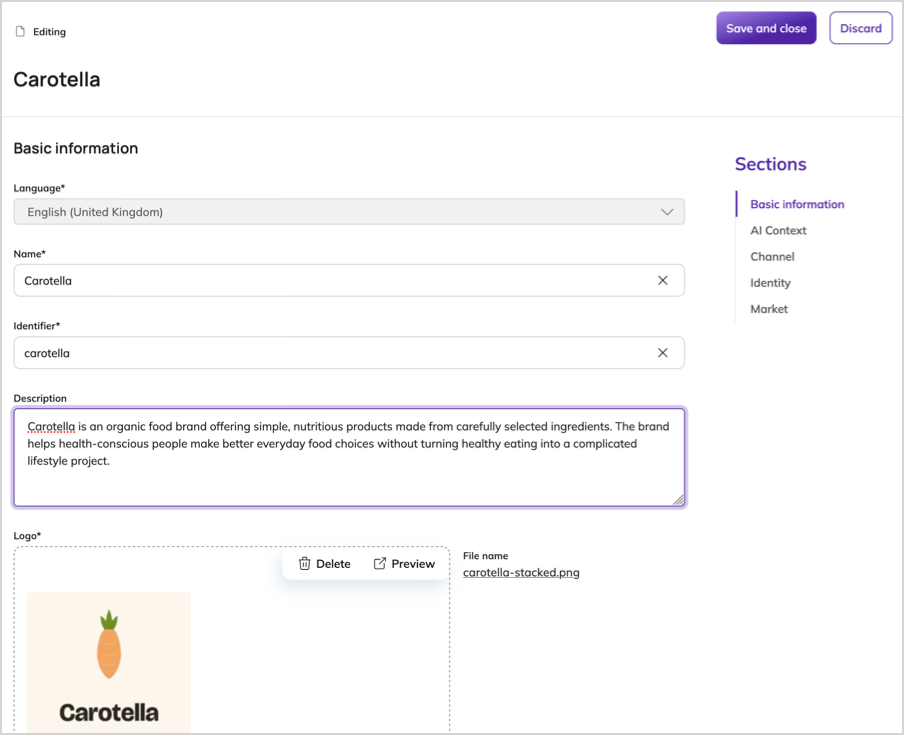
In the Basic information section, provide the following information:
- Name - the name of the brand context
- Identifier - a unique identifier used by the system
- Description - a short description of the brand context
- Logo - an image that you upload or choose from the library
- Primary color - the brand's main color, picked from the palette or entered as a hexadecimal value
- Region - the market or region in which the brand operates
-
In the sections that follow, fill in the attributes that apply to the brand. Fill in the AI Context attributes if you want AI actions to follow the brand's guidelines.
Checking how brand context affects AI
After you have created a brand context, you can check which brand guidelines AI actions use:
- In the top bar, in the Context drop-down list, choose a website that belongs to the brand context.
- In the Final prompt field of the AI action details, see the full prompt that an AI action sends.
-
Click Save and close.
Edit existing brand context
- In the brand context list, click Edit next to a name of the brand context.
- Choose the language that you want to edit and click Edit.
- Change the basic information or the attributes.
- Click Save and close.
View brand context details
To review the details of a brand context, in the brand context list, click its name.
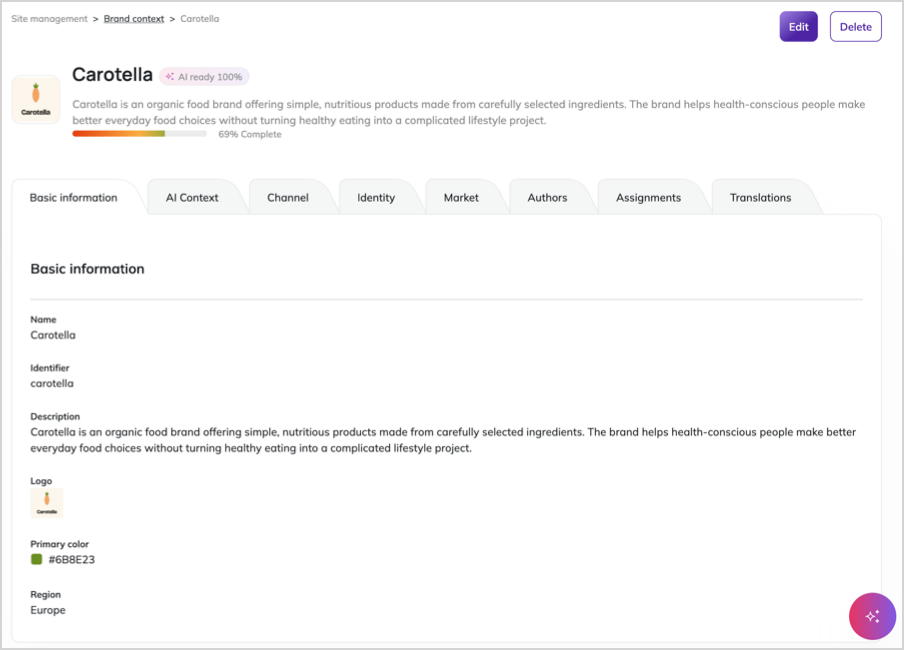
The brand context details screen shows:
- a progress bar with an approximate indication of how complete the brand context is
- the AI ready percentage, which tells you how many of the AI Context attributes are populated
You can use a brand context even if some of its fields are empty.
The information is divided into the following tabs:
- Basic information - name, identifier, description, logo, primary color, and region
- one tab for each attribute group, for example, Identity or AI Context
- Assignments - websites assigned to the brand context
- Translations - languages in which the brand context is available
- Authors - who created and last modified the brand context, and when
Assign websites to brand context
Each website can belong to only one brand context, and all websites in a brand context must share the same content tree root.
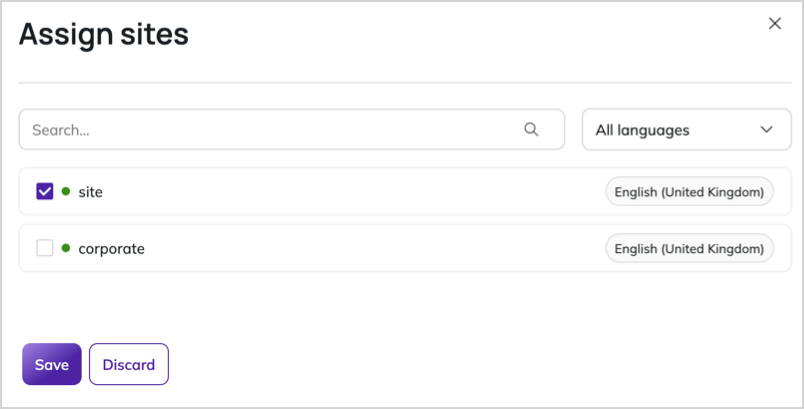
1. On the brand context details screen, go to the Assignments tab and click Assign sites.
2. In the Assign sites window, choose the websites that you want to assign. You can search for websites by name, and filter them by language. Websites that already belong to another brand context are unavailable. To assign such a website, first unassign it from its current brand context.
3. Click Save.
To remove a website from a brand context, on the Assignments tab, click Unassign next to the website, and confirm.
Translate brand context
You can translate a brand context into the languages of the websites that belong to it. AI actions use the AI Context attributes in the language that they work in, so make sure that these attributes are translated.
- On the brand context screen, go to the Translations tab and click Add.
- Choose the new language and the base translation to copy values from, and click Create.
- On the editing screen, translate the basic information and the attributes.
- Click Save and close.
Delete brand context
Risk of data loss
When you delete a brand context, all its information, including AI guidelines, is deleted. The websites assigned to it remain in the system, but no longer belong to any brand context.
- On the brand context details screen, click Delete.
- In the confirmation modal, review the list of websites assigned to the brand context, and click Delete.